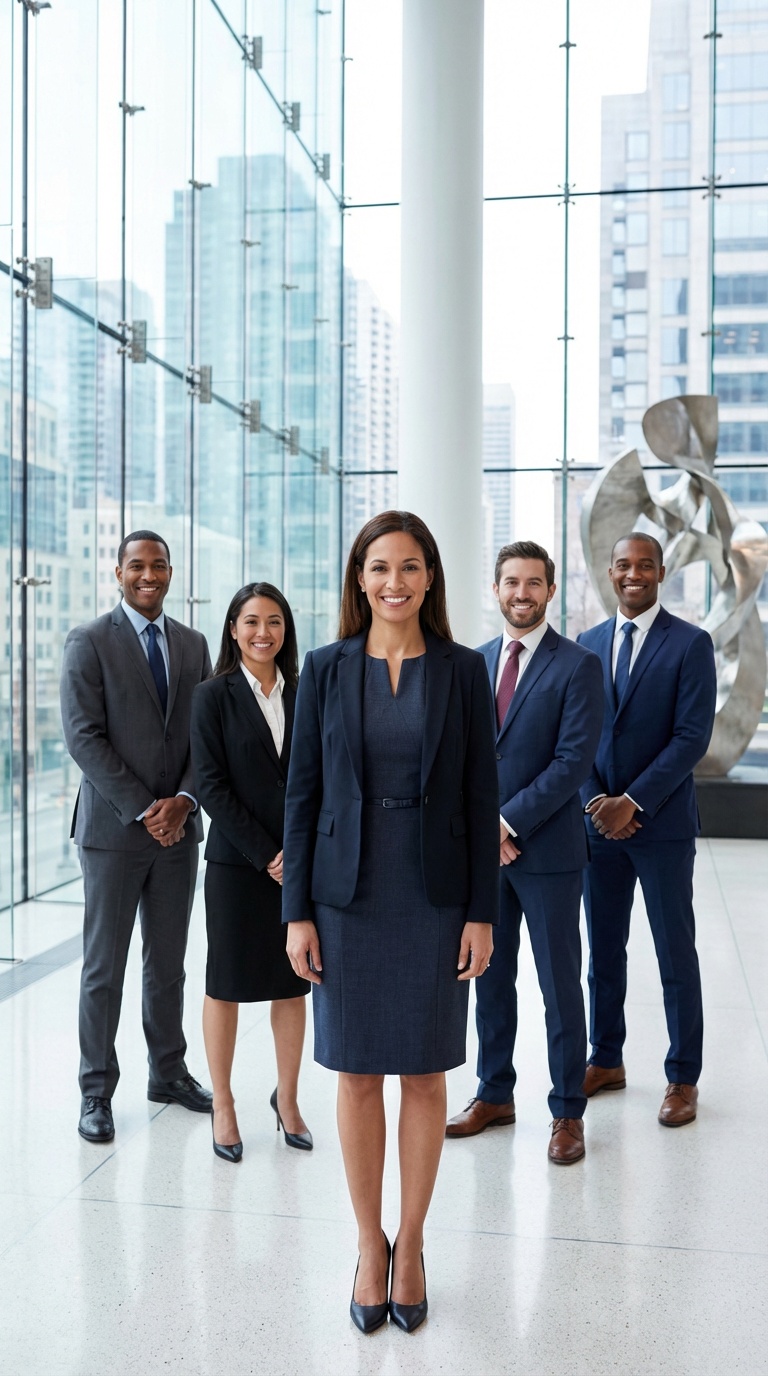
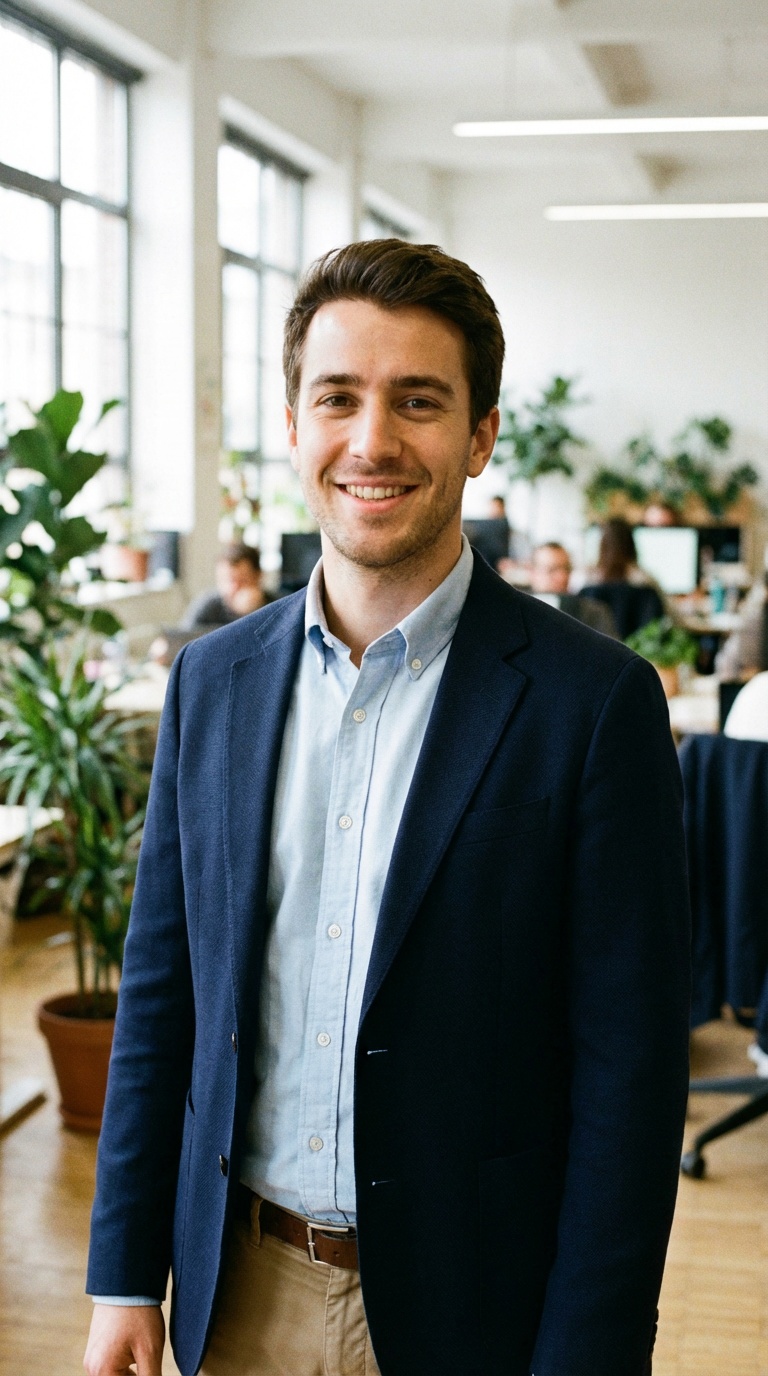
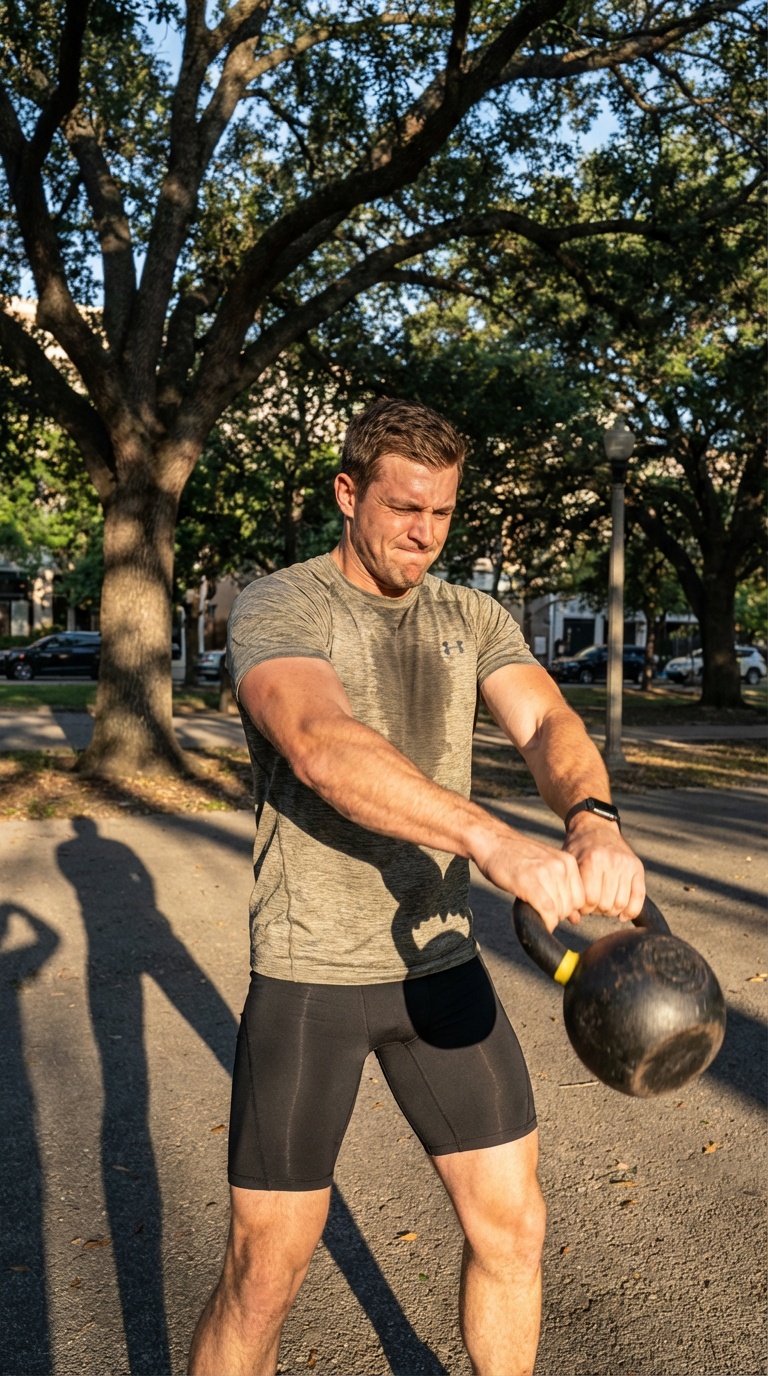
Choose a tool or photo style and upload the reference photos it requests. The legacy new-model training wizard is retired; existing models and outputs are retained.
Step 1: Create Your Account (2 minutes)
Account Setup
**Visit photoguruai.com** and click "Get Started"
Choose your plan: Select from our $35-75 individual plans or group pricing
Secure payment: One-time payment with no recurring subscriptions
Account verification: Verify your email address to activate your account
Profile setup: Basic account information and preferences
What You'll Need
**Valid email address** for account creation and notifications
**Payment method** (credit card, PayPal, or digital wallet)
**Clear reference photos** in the quantity requested by your chosen tool
**5 minutes** of your time for the setup process
Step 2: Upload Your Reference Photos
Photo Requirements
Quantity: Follow your chosen tool's upload requirements
Quality: High-resolution, clear, well-lit photos
Variety: Different angles, expressions, and lighting conditions
Format: JPG, PNG, or HEIC files up to 10MB each
Face focus: Your face should occupy 30-60% of each photo
Upload Process
**Drag and drop** photos into our secure upload interface
**Automatic validation** checks photo quality and composition
**Progress tracking** shows upload status for each photo
**Preview gallery** lets you review uploaded photos before processing
**Quality tips** provided if photos need improvement
Photo Tips for Best Results
**Natural lighting** works better than harsh artificial light
Different expressions: Include smiles, serious, and neutral expressions
Various angles: Straight on, slight left/right turns, different heights
Clean backgrounds: Simple, uncluttered backgrounds preferred
Recent photos: Use photos taken within the last 2 years for best accuracy
Where your photos go
New originals upload directly from your browser to FAL, not PhotoGuru's S3 or database. FAL may store and process them; some tools also use Replicate. Generated and edited photos and videos are saved in our S3 and linked in our database for your gallery. Previously uploaded originals may remain until legacy cleanup completes. See our Privacy Policy for details.
Step 3: Generate Your First Photos
Choose Your Style
Browse categories: Professional, Dating & Social, Lifestyle, Creative
Preview styles: See example photos for each style category
Select quantity: Choose how many photos to generate (varies by style)
Style mixing: Try different styles to see variety in results
Generation Process
Instant processing: Photos generate in 30-60 seconds
Real-time progress: Watch your photos generate in real-time
Quality optimization: AI applies professional lighting and composition
Automatic enhancement: Color correction and quality improvements applied
Immediate download: Photos available for download as soon as they're complete
Your First Generation Tips
Start with LinkedIn: Professional headshots are always useful
Try multiple styles: Generate a variety to see AI capabilities
Compare results: See how different styles work with your features
Save favorites: Download and organize your preferred photos
Step 4: Download and Use Your Photos
Download Options
Individual download: Download photos one at a time
Batch download: Download multiple photos as a ZIP file
Resolution choice: HD (1920x1080) or 4K (3840x2160) depending on your plan
Format options: JPG or PNG formats available
Organized folders: Photos organized by style and generation date
Usage Rights
Commercial rights included: Use photos for business, marketing, websites
No restrictions: Use photos anywhere without additional licensing
No expiration: Photos are yours forever with no time limits
Modification allowed: Edit, crop, or enhance photos as needed
Unlimited usage: Use photos across multiple platforms and purposes
Getting the Most from PhotoGuru AI
Advanced Tips
Experiment with styles: Try styles outside your comfort zone
Seasonal updates: Generate new photos for different seasons or occasions
Professional mixing: Combine different professional styles for variety
Platform optimization: Generate specific styles for LinkedIn, dating apps, etc.
Regular updates: Refresh your professional photos every 6-12 months
Support Resources
Knowledge base: Comprehensive guides and tutorials
Email support: Technical support for any issues
Style guides: Detailed information about each photo style
Best practices: Tips for getting optimal results
Community forum: Connect with other users and share tips
Common First-Time Questions
**Do I need to train a model?** No. The new-model training wizard is retired
**Can I use different photos later?** Upload new reference photos for another generation
**What if I don't like the results?** Try different styles or contact support for guidance
**How many photos can I generate?** Depends on your plan (50-100 photos included)
**Can I share my photos?** Yes, you own full rights to all generated photos
Troubleshooting Common Issues
Photo Upload Problems
File size too large: Compress photos to under 10MB
Unsupported format: Use JPG, PNG, or HEIC formats
Poor photo quality: Ensure photos are clear and well-lit
Upload timeout: Check internet connection and try again
Browser issues: Try a different browser or clear cache
Processing Issues
Delayed processing: Check the tool's progress display; provider queues can delay results
Processing failure: Contact support with error details
Poor results: Try clearer reference photos or a different style
Remember, PhotoGuru AI is designed to be user-friendly, but our support team is always available to help you get the best results. Don't hesitate to reach out if you need assistance at any step of the process!